

How to Make a First Time in a Fancy Cafe Video from Two Photos
To make a first time in a fancy cafe video on Fancy Cafe AI, prepare one clear photo of each person, upload them into the two role boxes, and generate the preset scene. Person 1 starts on the left; Person 2 enters from the right. You do not need to write a prompt or film inside a cafe.
Open the cafe video generator when your photos are ready. The current preset produces one 15-second, 720p, 9:16 video and uses 500 credits per generation. This guide follows that specific workflow, including what to check before spending credits and what to review afterward.
1. Choose the pair and prepare separate portraits
Decide who plays the customer making the seating mistake. Put that person's photo in Person 1 · Left. The person whose arrival reveals the correct seating belongs in Person 2 · Right.
Use two separate image files, each showing one person. A combined selfie makes it harder to supply each role independently. If your only source is a photo of the pair, prepare a separate crop for each person before uploading, provided each resulting face remains clear.
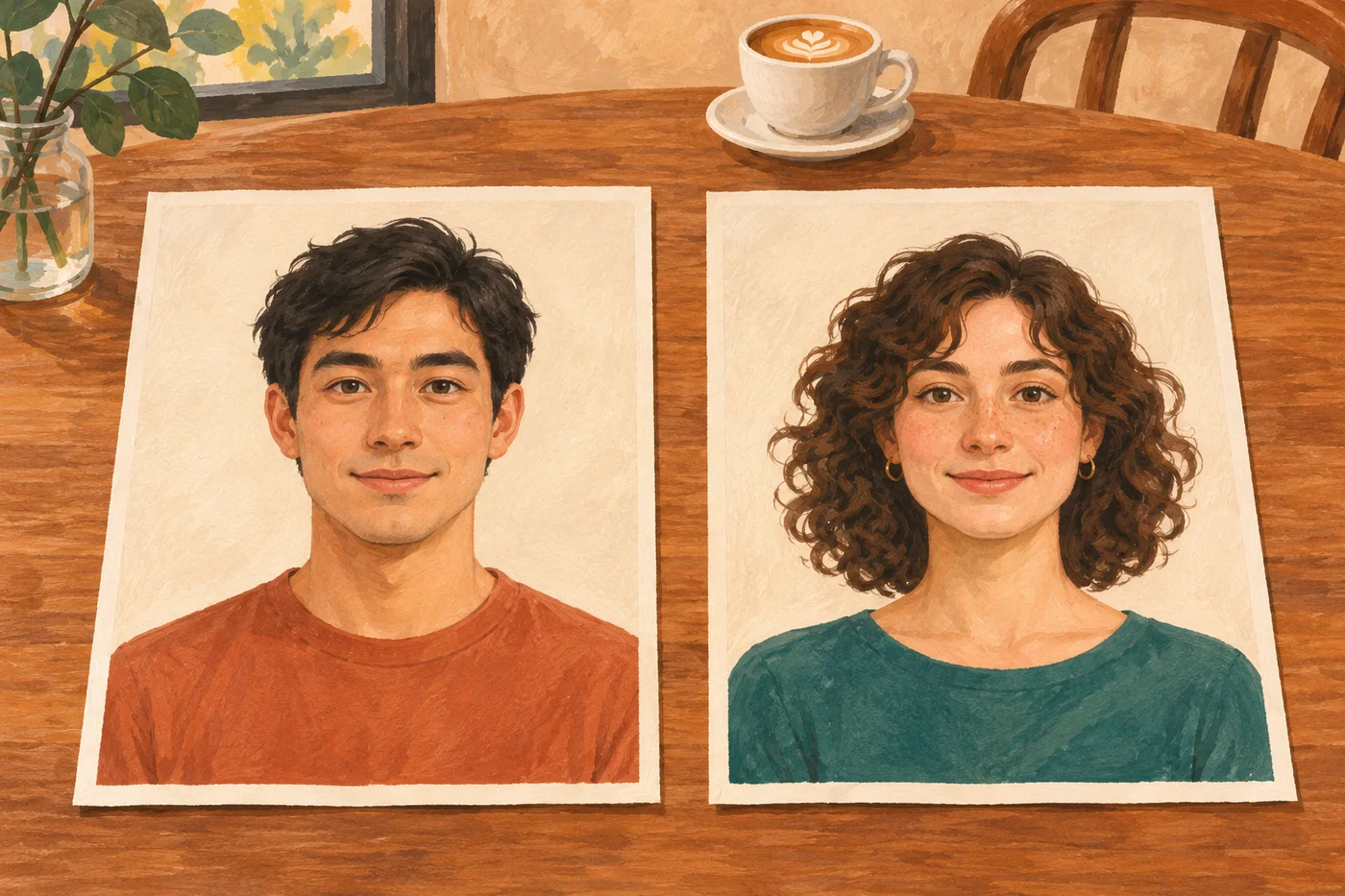
AI-generated illustration of separate portrait inputs. These are fictional people, not uploaded customer photos or a screenshot of the tool.
For each portrait, check the eyes, nose and mouth at normal viewing size. Prefer even light and a relaxed expression. Keep enough of the shoulders and clothing to give the character a useful visual reference. Avoid a hand across the mouth, a very small face in a group photograph or a heavy filter that changes facial features.
The file requirements are:
| Input | Current requirement |
|---|---|
| Number of files | Exactly two different photos, one per role |
| Image type | Non-animated JPEG, PNG or WebP |
| File size | Up to 30 MB per photo |
| Image dimensions | No more than 40 megapixels per photo |
Cropping a photograph does not restore missing detail. If the face is already blurry, choose a sharper source rather than enlarging it repeatedly. Clear references help, but they do not guarantee an exact likeness throughout a generated video.
2. Upload each photo into its role box
Sign in, then use the first upload box for Person 1 and the second for Person 2. Check both previews before moving on. The labels refer to the characters' positions and actions in the scene, not to the order in which your files finished uploading.
If the roles are reversed, replace the photos in the corresponding boxes. If you selected the same file twice, choose a different photo for the second role; identical files are rejected. There is no need to combine the images into a collage.
The preset supplies the cafe environment and action sequence. This form has no separate room, camera or custom-prompt controls. A prompt intended for another video tool is not an additional input to this preset.
3. Check the cost and generate one version
Read the displayed cost before selecting Generate video. At our November 4, 2026 check, this preset used 500 credits for a 15-second, 720p vertical clip. Credits are sold through the site's one-time credit packs; check the current pack price and balance on the page rather than treating a credit amount as a dollar price.
Start with one generation so you can evaluate the pair and the action before making more versions. A new attempt uses the displayed generation cost again. Do not assume that disliking a completed result automatically makes the next attempt free.
Once submitted, let the task process and inspect the status shown by the tool. There is no fixed completion-time promise in this guide. A missing upload, an account message or a processing task calls for a different next step, so read the actual status before clicking again.
4. Review both people and the seating reveal
Play the full video once for the story, then again for visual details. A good opening frame alone does not show whether the change of seat works.
| Check | What to look for | If it fails |
|---|---|---|
| Role assignment | The intended first customer starts on the left | Correct the upload boxes before another attempt |
| Facial likeness | Both faces remain recognizable as they look sideways and move | Try a clearer, less obstructed source portrait |
| Furniture | The round tabletop remains separate from the low bench | Review whether the joke is understandable before choosing the result |
| Action order | The arriving customer demonstrates the correct seat before the first customer moves | A new generation may be needed; the preset has no timeline editor |
| Hands and cups | Fingers, cups and furniture stay visibly distinct | Inspect movement rather than relying on a still frame |
| Ending and audio | The seat switch finishes and the saved file plays correctly | Check the complete download before posting |
Change one input at a time when retrying. If Person 1's face is unclear but Person 2 is satisfactory, replacing both images makes it harder to tell what helped. Better inputs can reduce ambiguity; they cannot ensure a particular expression, outfit or motion.
For a closer look at scene failures, read the prompt and continuity checklist. It separates checks you can make in this preset from changes that require a prompt-capable tool.
5. Download and prepare the post
When the task is complete, open the result and use its download button. Play the saved file locally, including the ending and sound. Preview it again inside the destination app so its interface does not hide the furniture or the reaction.
A short caption is enough. “Found my seat. Eventually.” gives the audience a starting point without explaining the ending. Avoid covering the low bench with text or cutting away before the second customer's action becomes clear.
For posting, check the destination platform's current AI-labeling and sound-use guidance. TikTok's AI-generated content help page explains its labeling rules. An audio track included in a downloaded file should not be treated as proof of permission for every publishing use.
If you want to understand the format before choosing your pair, start with the fancy cafe trend explainer. Otherwise, return to the two-photo generator, confirm both roles and make your first version.
Workflow and product limits checked November 4, 2026. This guide documents the current interface and input validation; it does not promise a particular generated result.